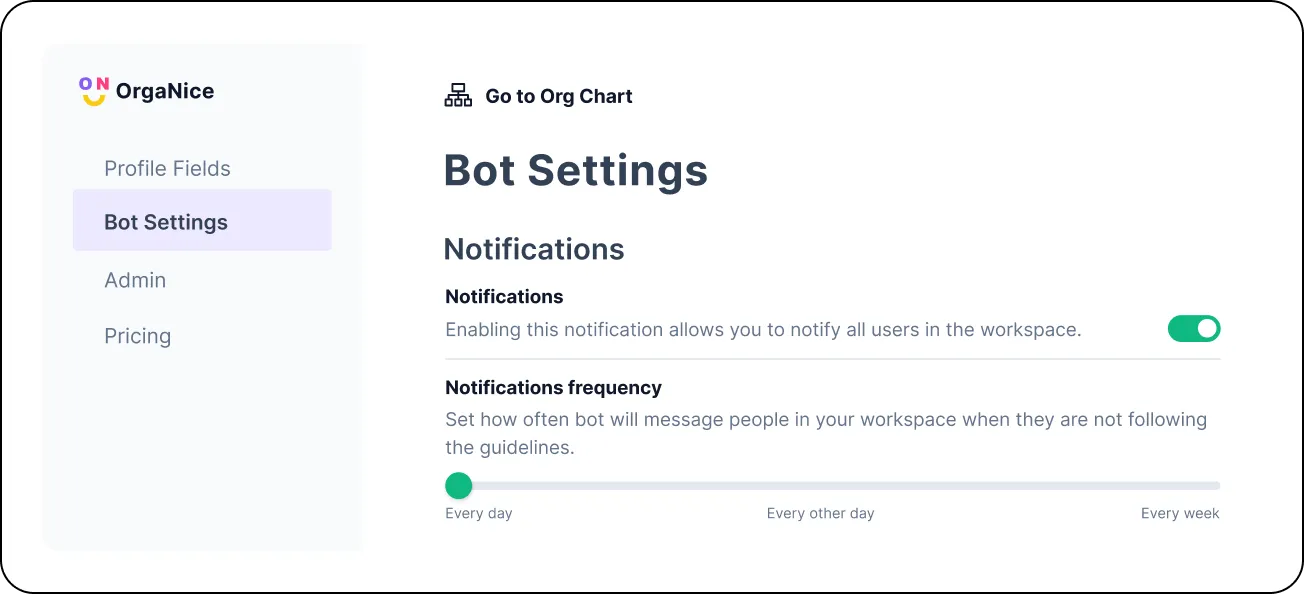
See what you can do with OrgaNice

Home Tab
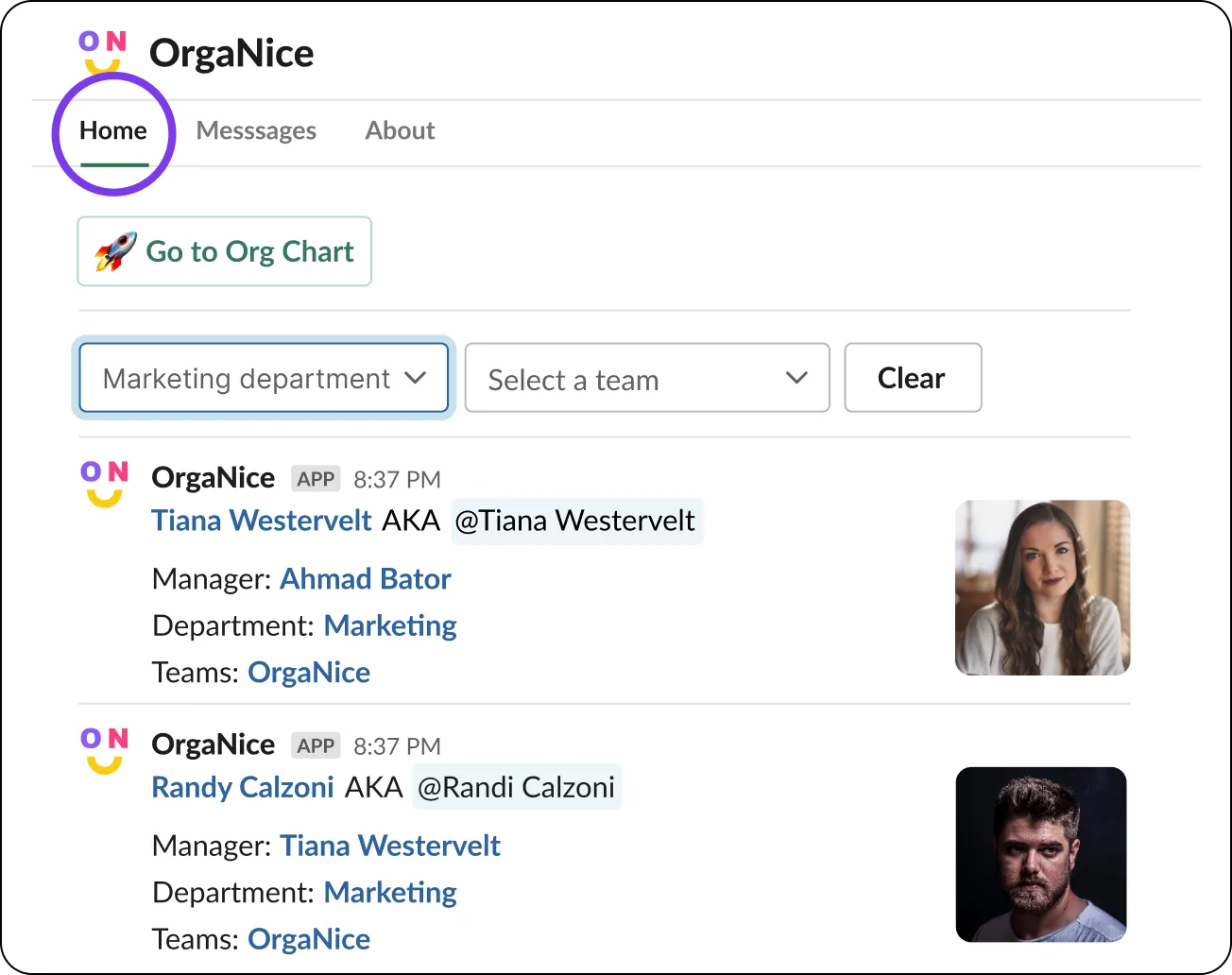
From Home Tab you can sort users by departments and by teams. When selecting a specific department or team you will have a list of users with the following info:
- Full name leads to the user's position on the org chart
- Nickname opens Slack profile
- Field Manager opens manager's position on the org chart
- Field Department opens the department on the org chart
- Field Teams opens the team on the org chart
Message shortcut
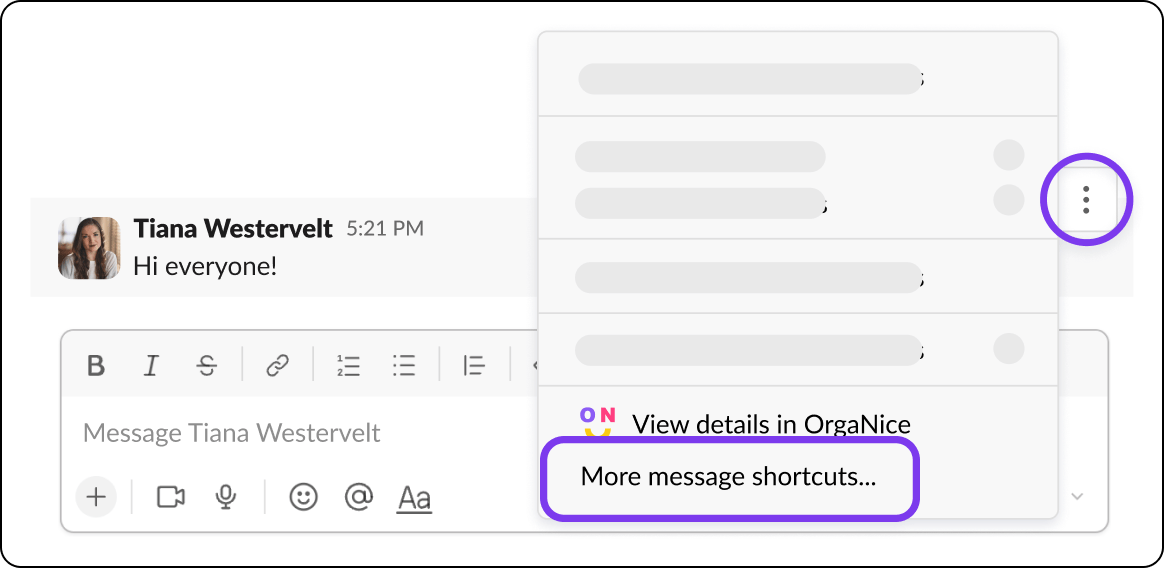
Second way of checking user's profile is message shortcut.
To access Message shortcut, go to a chat with any user and hover over their message, click on vertical ellipsis -> choose More message shortcuts.
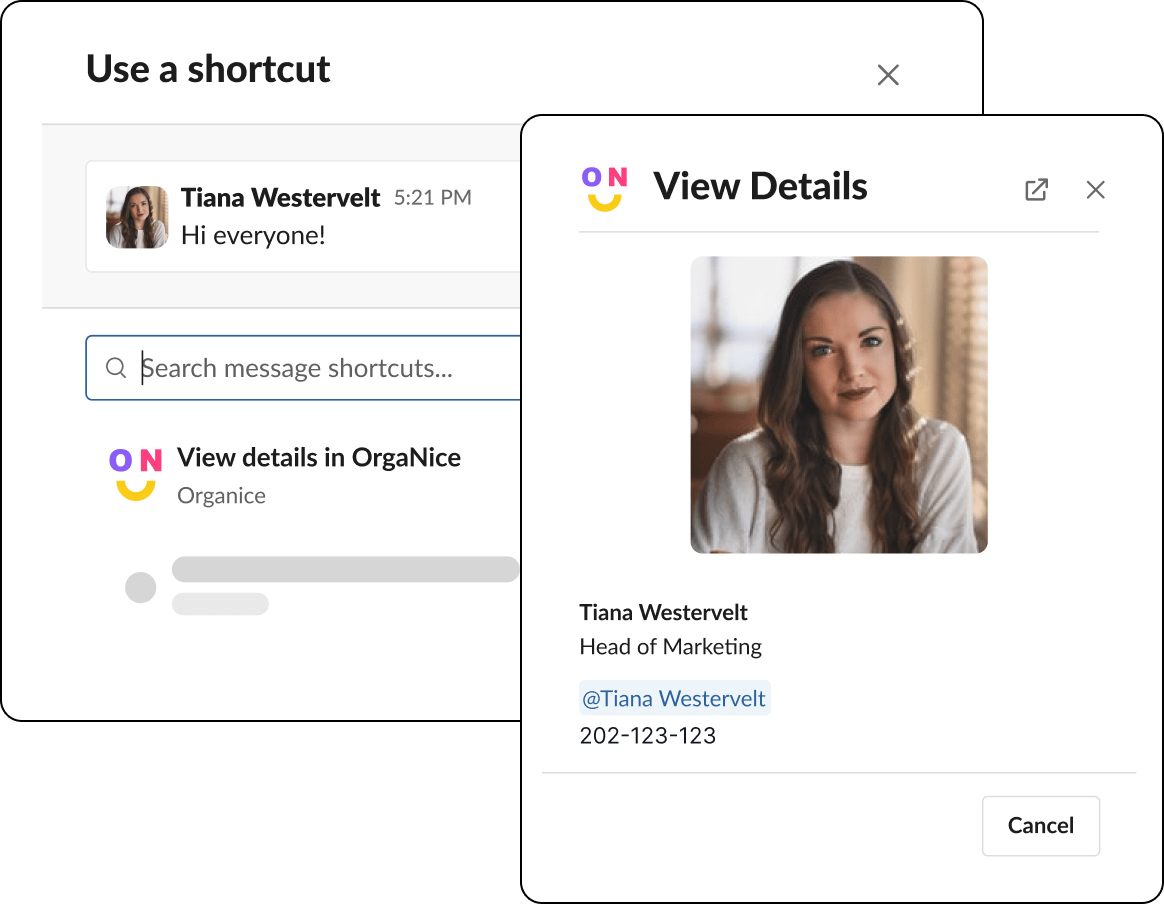
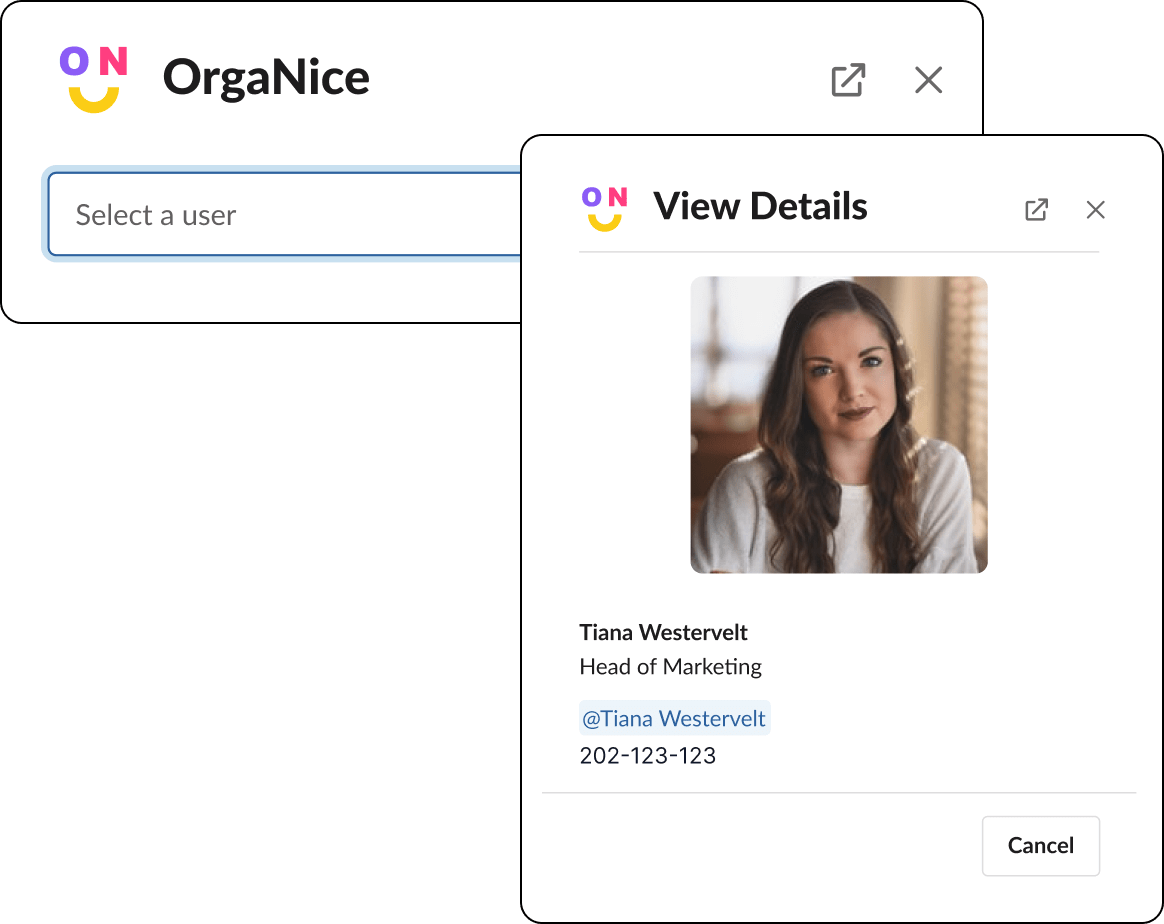
Click on View details in OrgaNice. This will open a separate modal with user's info.
Global shortcut
Third way of checking user's profile is global shortcut.
To reach Global shortcut, press cmd/ctrl + K -> Start typing OrgaNice -> Select Search in OrgaNice.
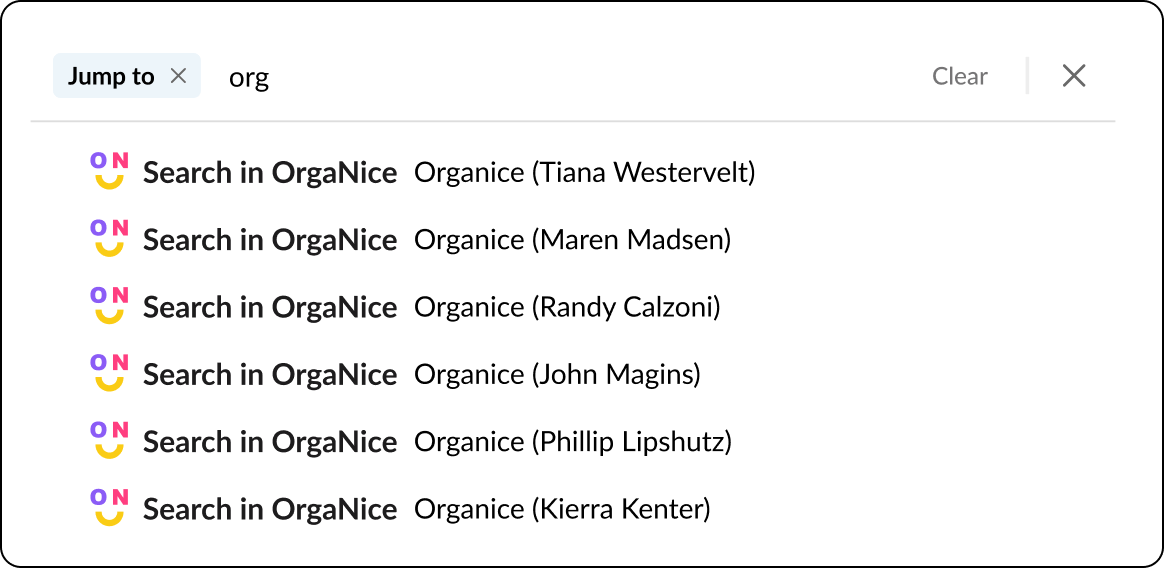
This will open a new modal, where you can select any user. After selecting the user, you will see their data.
Profile fields
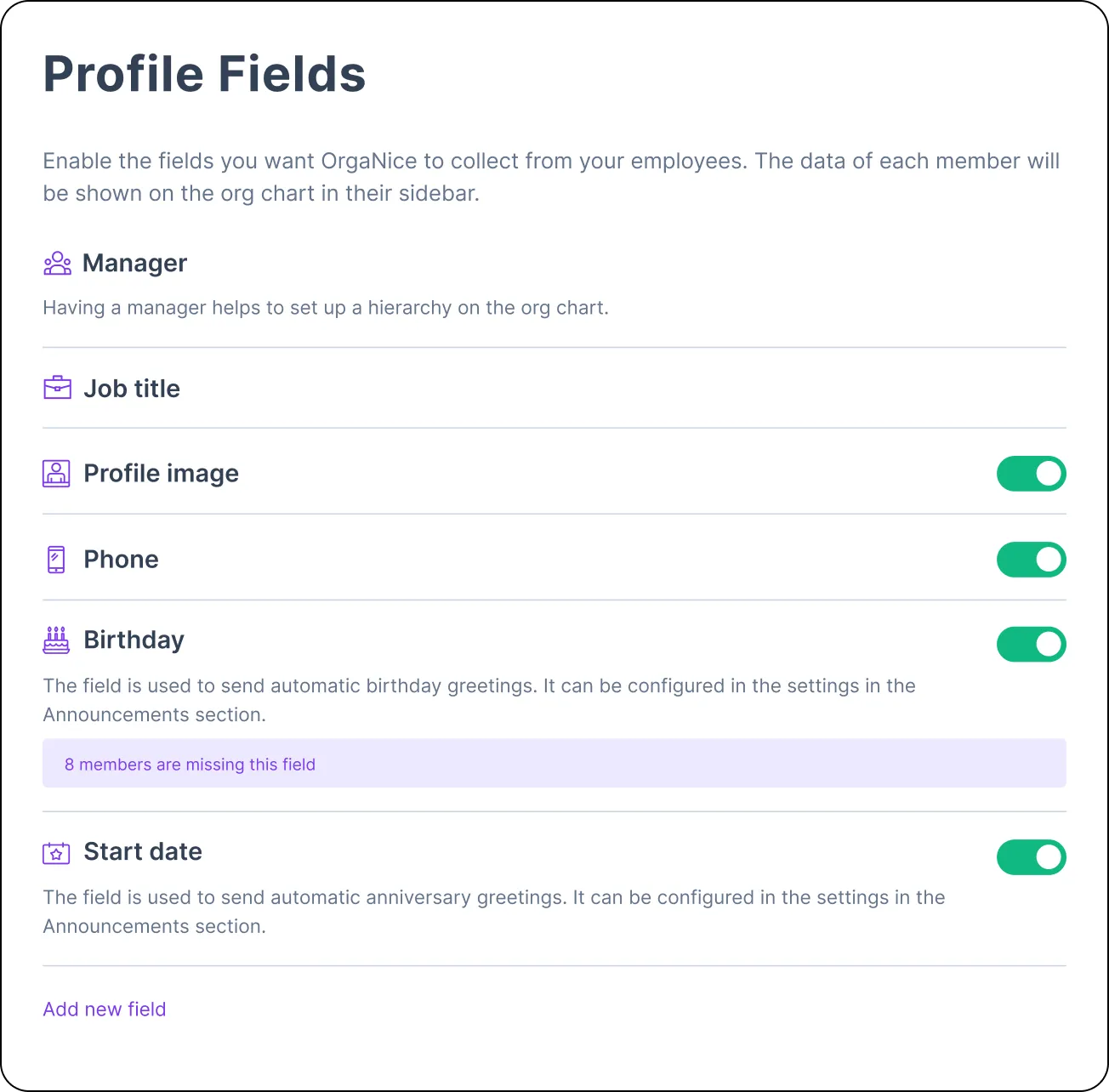
In this section admins can configure Slack profile fields that will be visible on the org tree. To sync these fields please turn on the toggles. Some of the fields can be disabled. To activate them in your Slack workspace please go to Settings and administration -> Workspace settings -> Profile -> choose a required field and change Data source from "User-edited" to "API".
Note: only Slack workspace admins can do this.
Once regular users answer the bot they will be able to edit their Slack profiles only on the org chart because the majority of fields will be switched from user-edited to API.
Right after setting up the fields, the bot starts to send messages to workspace users and ask to fill in.
Notifications